
Cursor

Cursor
double-click, copy, paste.
End
Paste User Guide
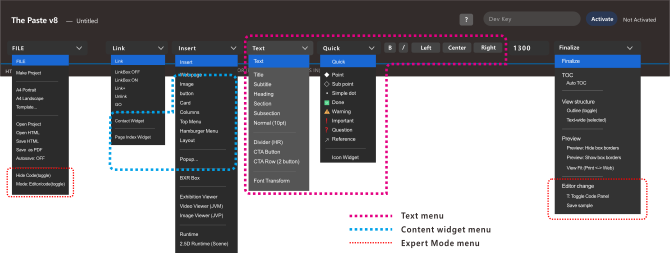
1. Setup
Creat Project
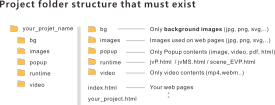
Paste uses a fixed project structure.
When you create a project, the following folders
are generated automatically.
/images
/bg
/video
/popup
/runtime
/template
Keep this structure unchanged.
Paste saves and loads files using these folders.
2. Core Concepts
2.1 Cursor
The cursor is the center of Paste.
Just like a document editor, everything can be inserted at the cursor position.
Text, Images, Video, Buttons, Menus, Cards, Columns, Widgets
Where the cursor is, the content goes.
2.2 Copy & Paste
Most content can be copied and pasted.
▪ Images
▪ Buttons
▪ Menus
▪ Cards
▪ Columns
▪ Widgets
Copy the selected content.
Move the cursor.
Paste.
The content is inserted at the cursor location.
2.3 Double-click to Edit
Every object in Paste can be edited
by double-clicking it.
Double-click
↓
Widget opens
↓
Modify
↓
Apply
No coding required.
3. Text
Basic Text Editing
Type text at the cursor position.
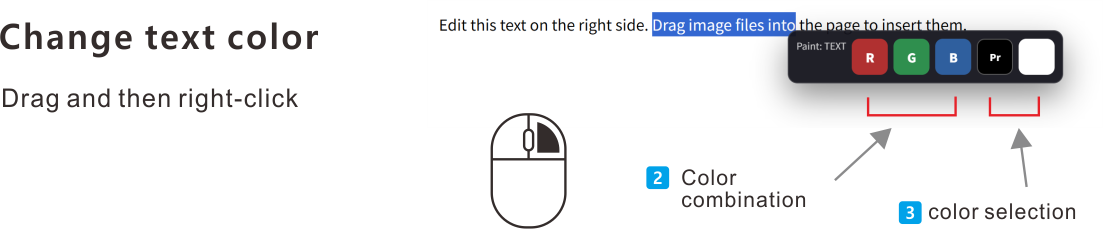
Select text by dragging.
Change colors and formatting.
3.1 Line Breaks
Enter
= Paragraph
Shift + Enter
= Line Break
Similar to document editors.
3.2 Text Style
Select text and use:
▪ Size
▪ Bold
▪ Italic
▪ Underline
▪ Alignment
▪ Color
from the top toolbar..
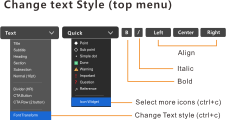
3.3 Font Transform
For special typography:
Text→ Font Transform
Use custom styles and
decorative text
3.4 Symbols and Icons
Use:
▪ Quick Menu
▪ or
▪ Icon Widget
to insert symbols and icons.
Icons can be copied and pasted like other content.
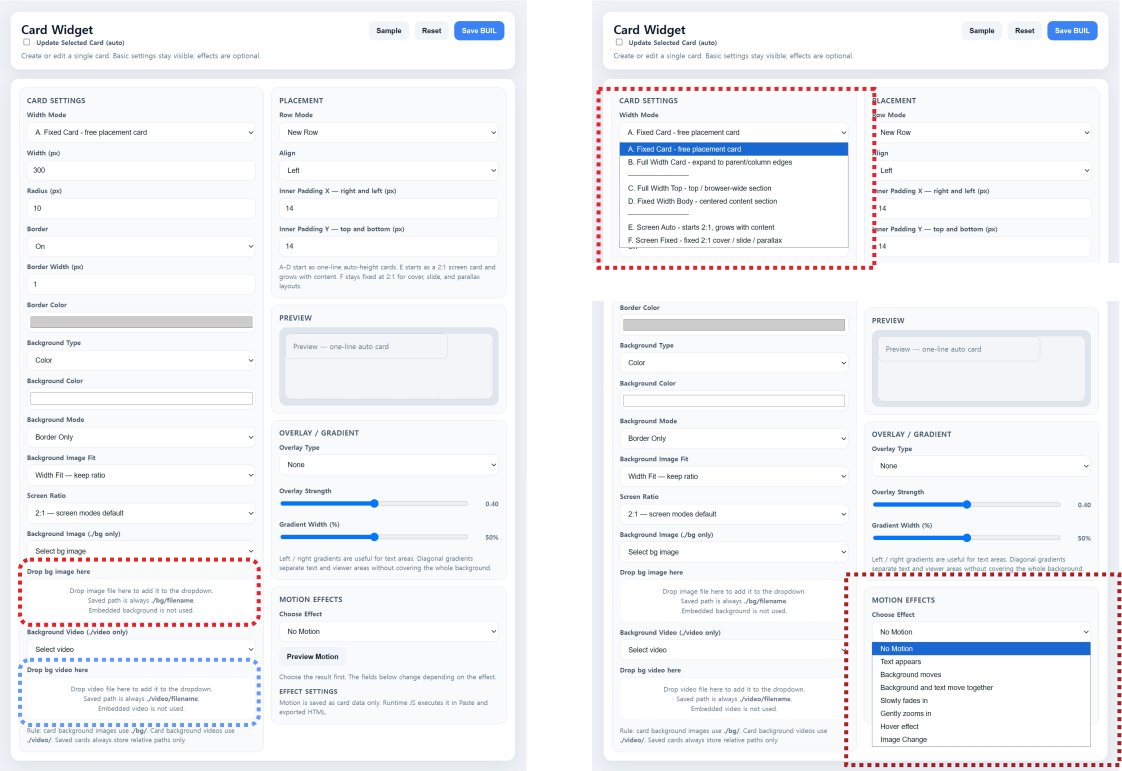
4. Cards
Cards are content containers.
Almost everything in Paste lives inside a card.
Use cards to create:
▪ Sections
▪ Layouts
▪ Landing Pages
▪ Content Blocks
Cards support:
▪ Background Images
▪ Background
▪ Video
▪ Parallax
▪ Animation
▪ Hover Effects
5. Columns
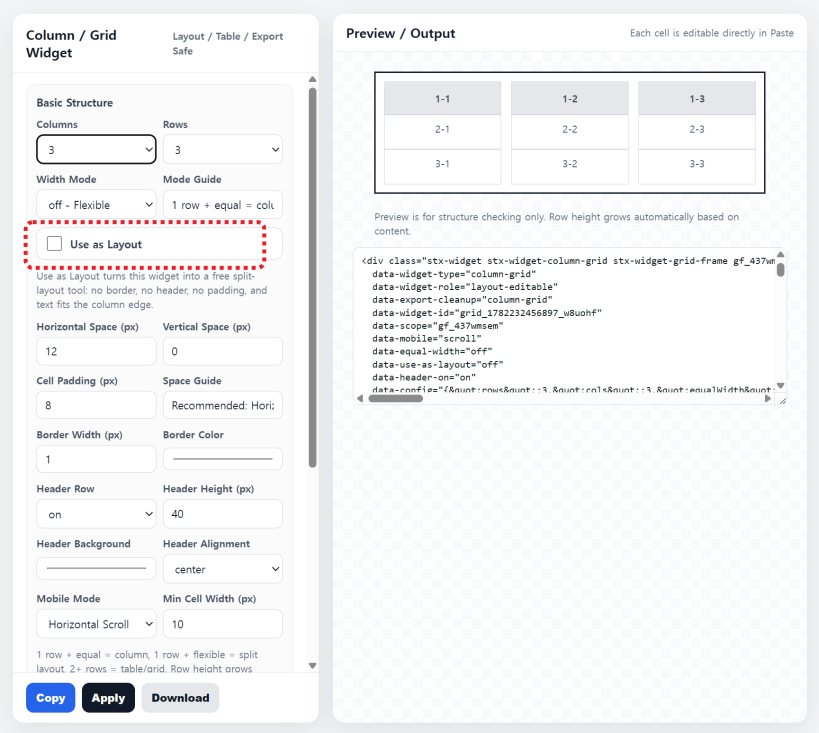
Columns divide a page into multiple areas.
Use columns for:
▪ Layouts
▪ Tables
▪ Comparisons
▪ Product Lists
▪ Feature Lists
Columns can contain any Paste
content.
▪ Text
▪ Images
▪ Buttons
▪ Cards
▪ Widgets
6. Background
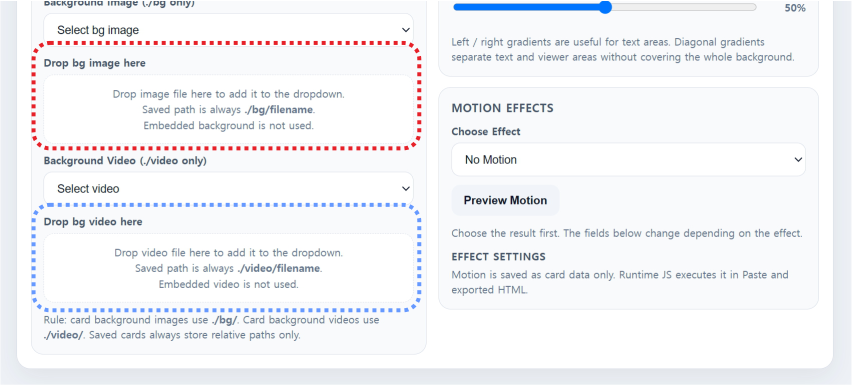
Use images or videos as backgrounds.
Supported uses:
▪ Page Background
▪ Card Background
▪ Section Background
Backgrounds maintain their
proportions automatically.
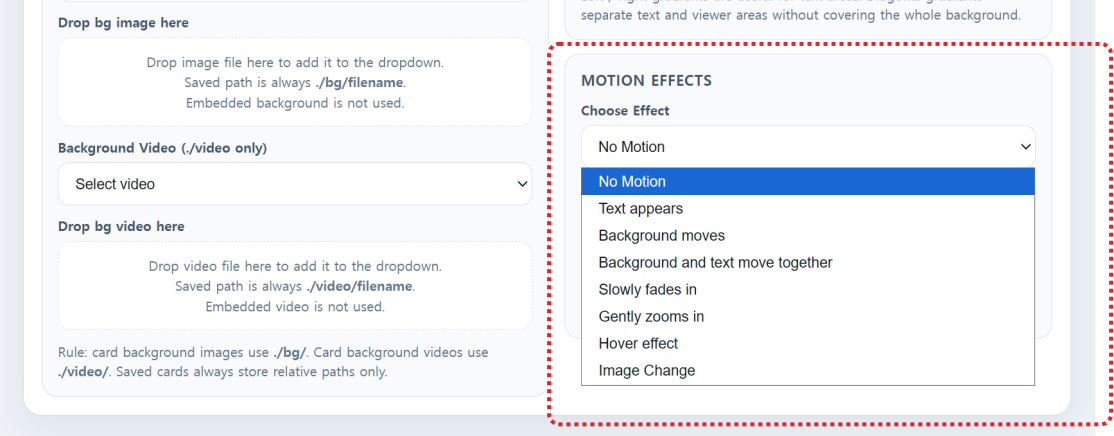
7. Animation
Animation helps guide attention.
Available effects include:
▪ Fade
▪ Slide
▪ Parallax
▪ Hover Effects
Use animation to emphasize
important content.
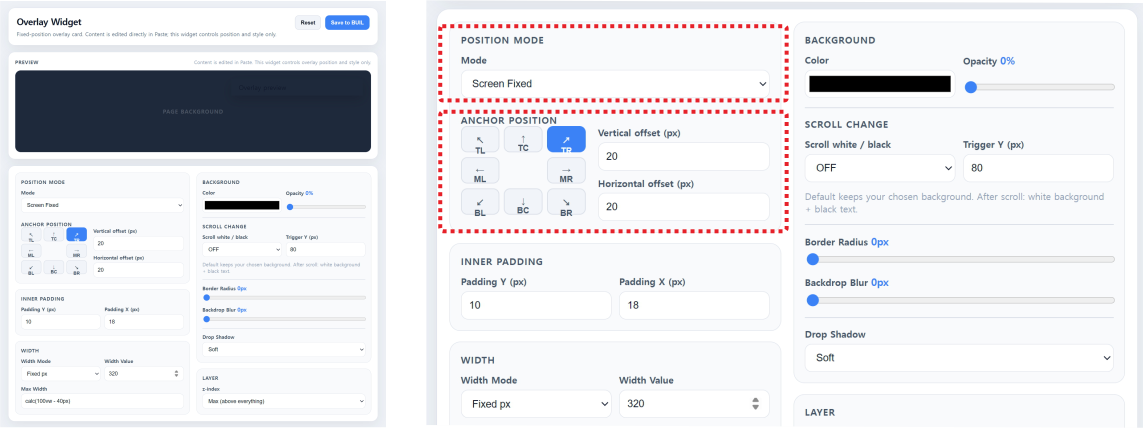
8. Overlay
Overlay content stays above the page.
Examples:
▪ Hamburger Menu
▪ Floating Menu
▪ Quick Navigation
▪ Popup Controls
Overlay elements remain visible
while users interact with the page.
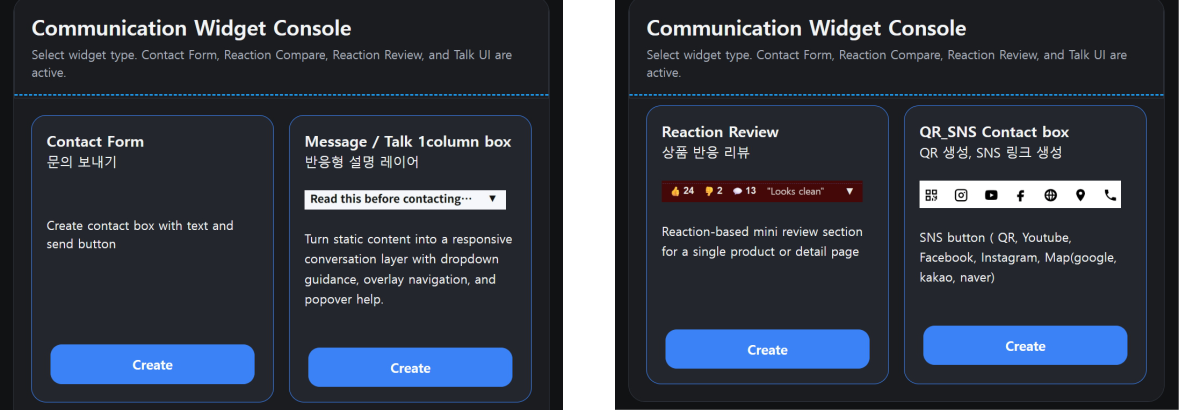
9. Widgets
Widgets add interactive content
Examples:
▪ Buttons
▪ Links
▪ Contact Forms
▪ Hotspots
▪ Menus
▪ Popups
▪ Media Viewers
Most widgets can be edited by double-clicking.
iCanPaste
www.icanpaste.com
6.67
Secure & Private
Your data is secure.
We never sell your data.
Your Files, Yours
You own your files. Export anytime.
No Lock-in
Built for freedom, not platform dependency.
© 2026 STELAFOX. All rights reserved. iCanPaste is a product of STELAFOX .
Operator: starlight fox | Business Registration No. 488-07-03021 | Email: support@stelafox.com | Website: www.stelafox.com